
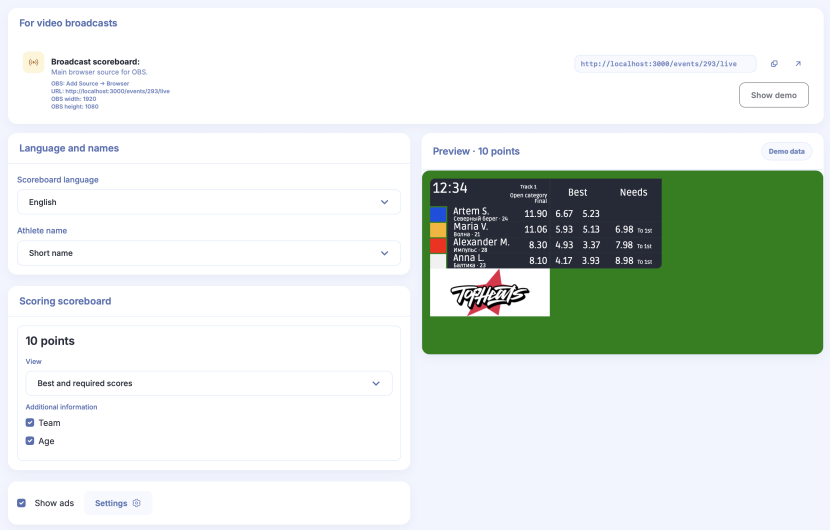
The broadcast scoreboard displays heat participants, scores and results in your live video. Add it as a browser source in your broadcast software. In the settings, you can choose the language and scoreboard view, change name formatting, show teams and ages, and display organiser and partner logos.
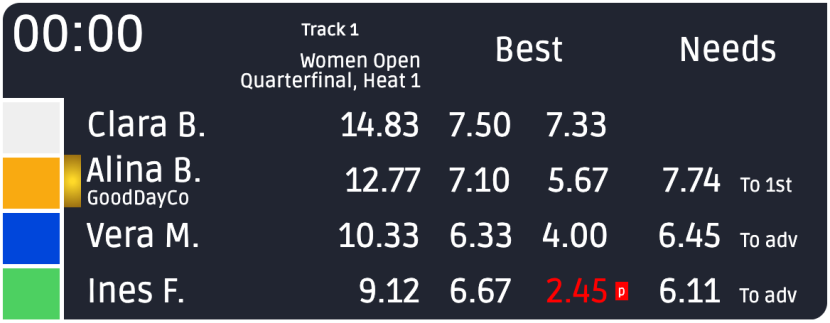
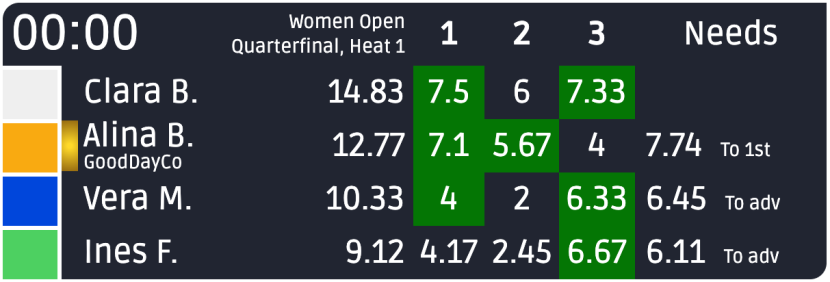
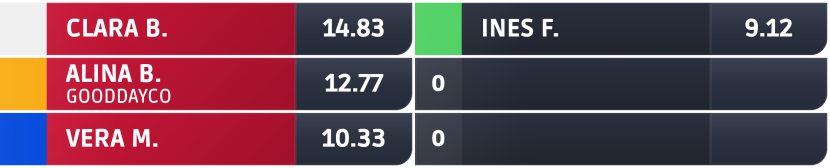
Scoring scoreboard examples
A few examples; the available views depend on the event’s scoring system.
Open the scoreboard
In the event menu, open Broadcast control and choose the broadcast scoreboard.
Under For video broadcasts, open the output link or copy it for your broadcast software. In your broadcast software, set the browser source width to 1920 and height to 1080.

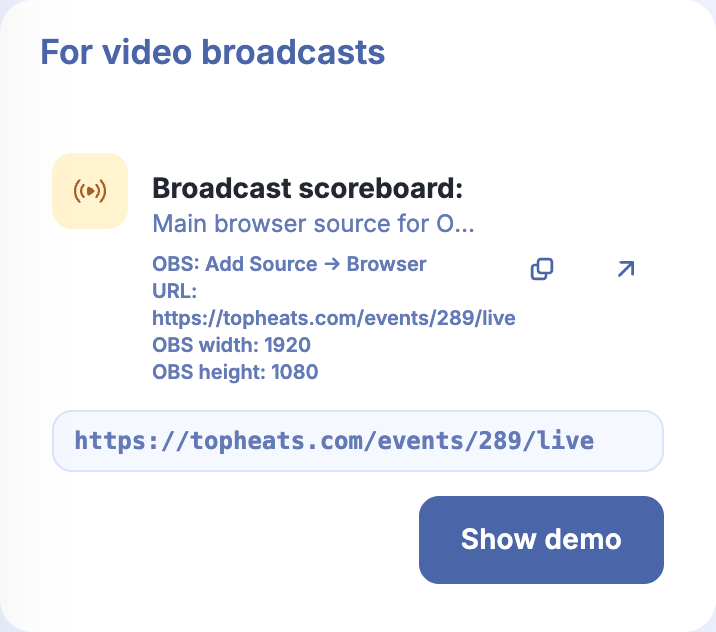
To preview how the graphics will look in your broadcast, click Show demo and open the output page. The demo runs for 30 seconds. The button is unavailable while a heat is active.
Language, names and scoreboard view
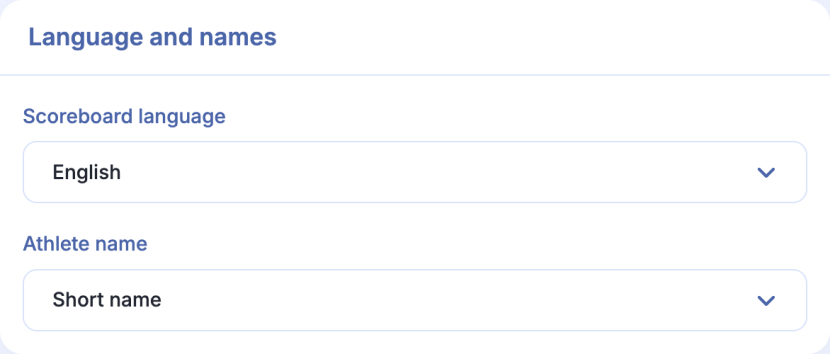
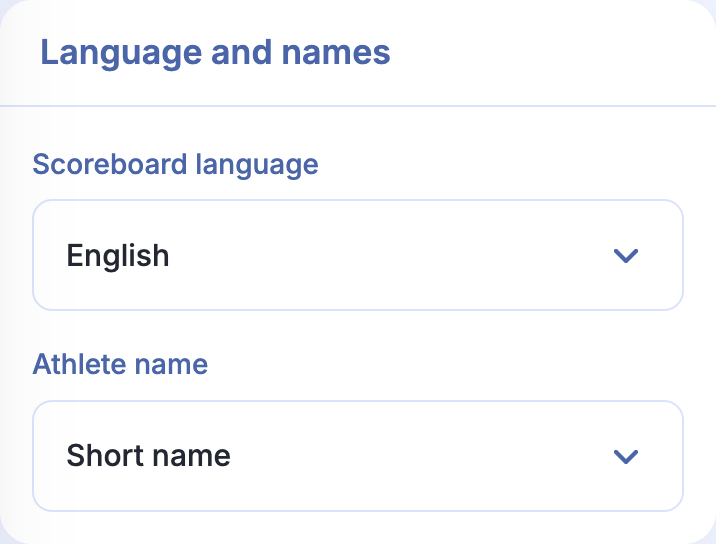
Under Language and names, choose the scoreboard language and full or short athlete names.
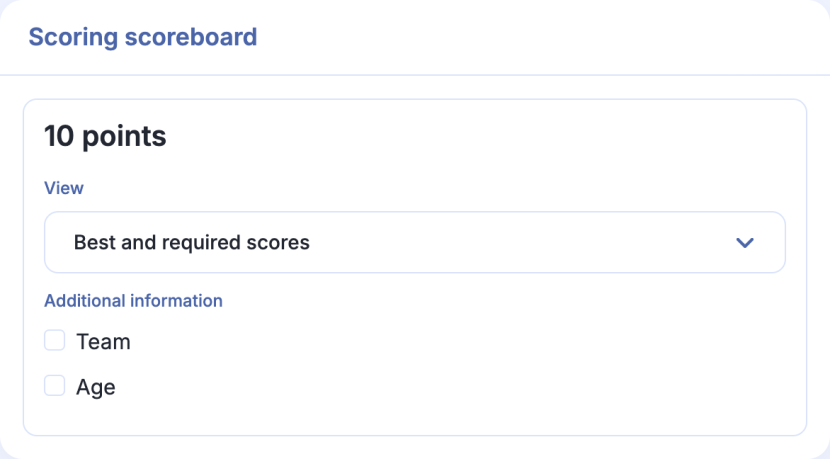
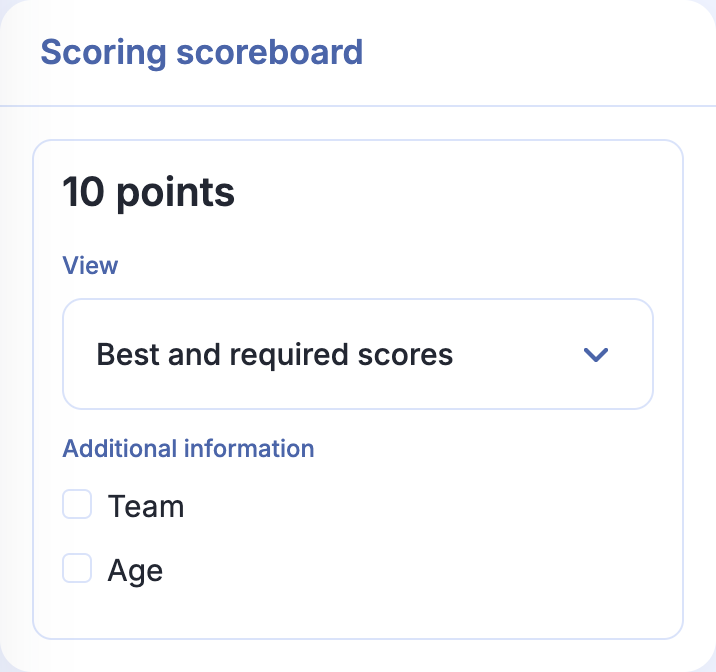
Under Scoring scoreboard, choose a View. The available scoreboard views depend on the event’s scoring system. The 10-point scoreboard offers Row scoreboard, Score totals, Best and required scores, and Runs. The 100-point scoreboard uses Row scoreboard.
Enable Team and Age if needed. The built-in preview helps you choose a layout and uses demo data.
Where the team comes from
Open Athletes, find the athlete and click Edit player. Fill in Team and click Save. Then enable team information for the scoreboard view you want to use.

Ads and logos
Enable Show ads and open  Settings next to it.
For the organiser and event partners, enable Show and set how many seconds each logo should appear.

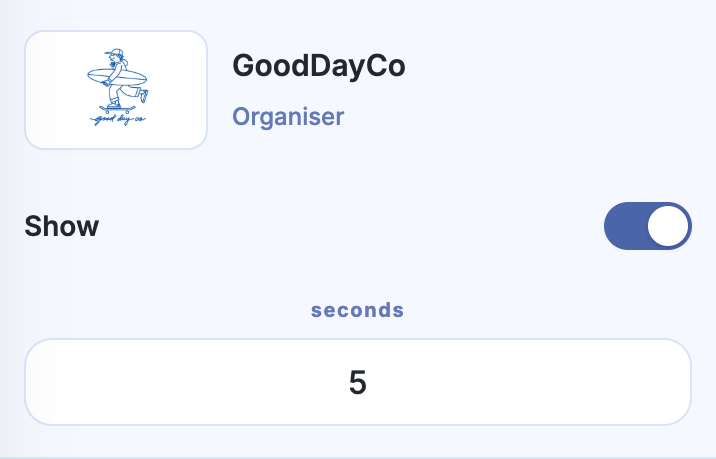
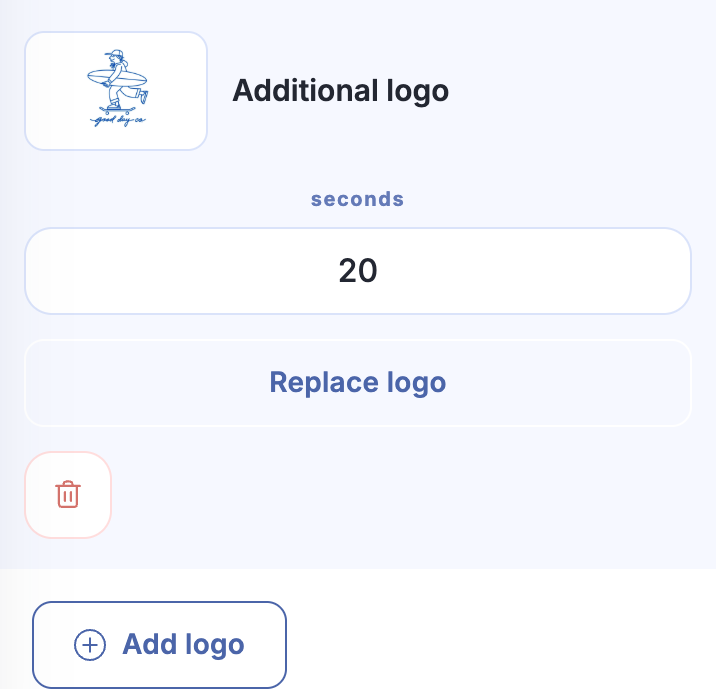
Organiser and partner logos come from the event design settings. To use another image, click Add logo, choose a file and complete the upload. You can change its duration, replace the image or remove it.

Open the output page and check the names, scoreboard view and logo rotation.