
When you register an organisation, TopHeats creates five judge accounts and emails you their login details. Judges can use these credentials to sign in. The accounts are already available to your organisation and are added to its new events by default.
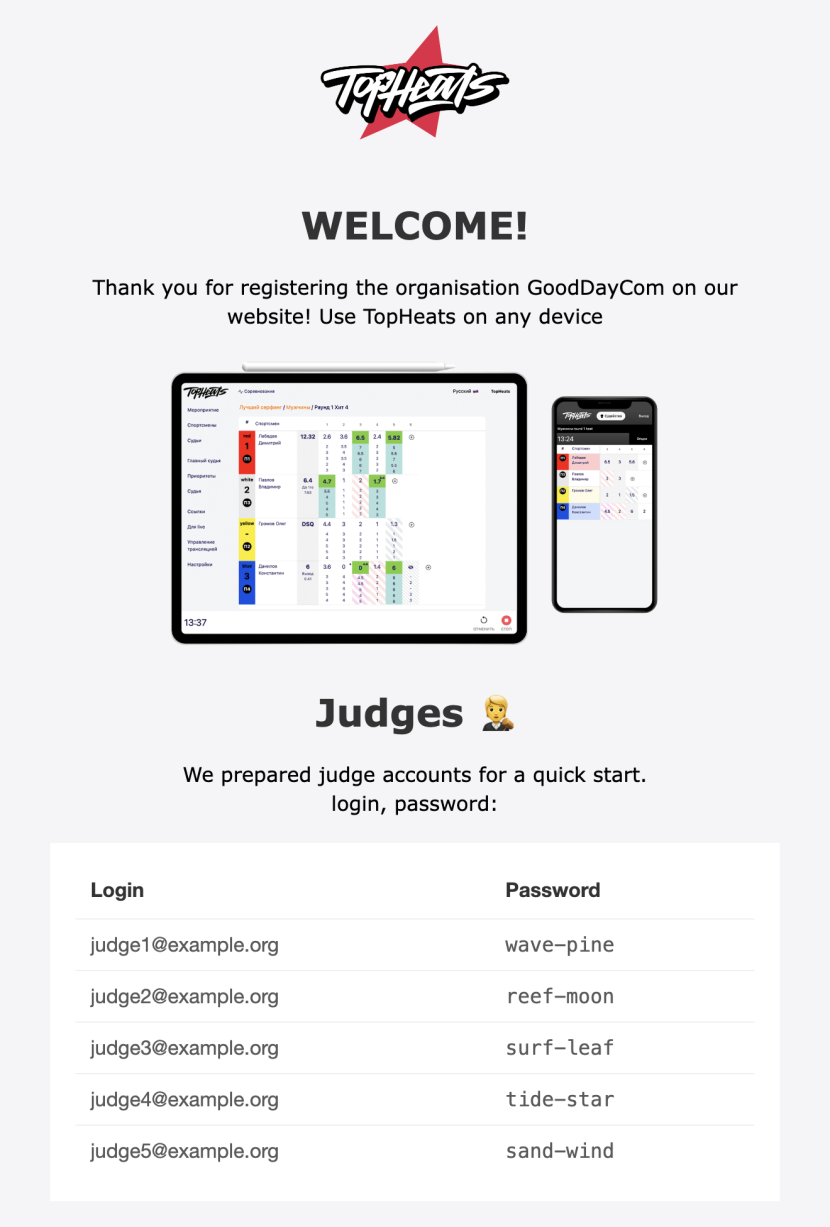
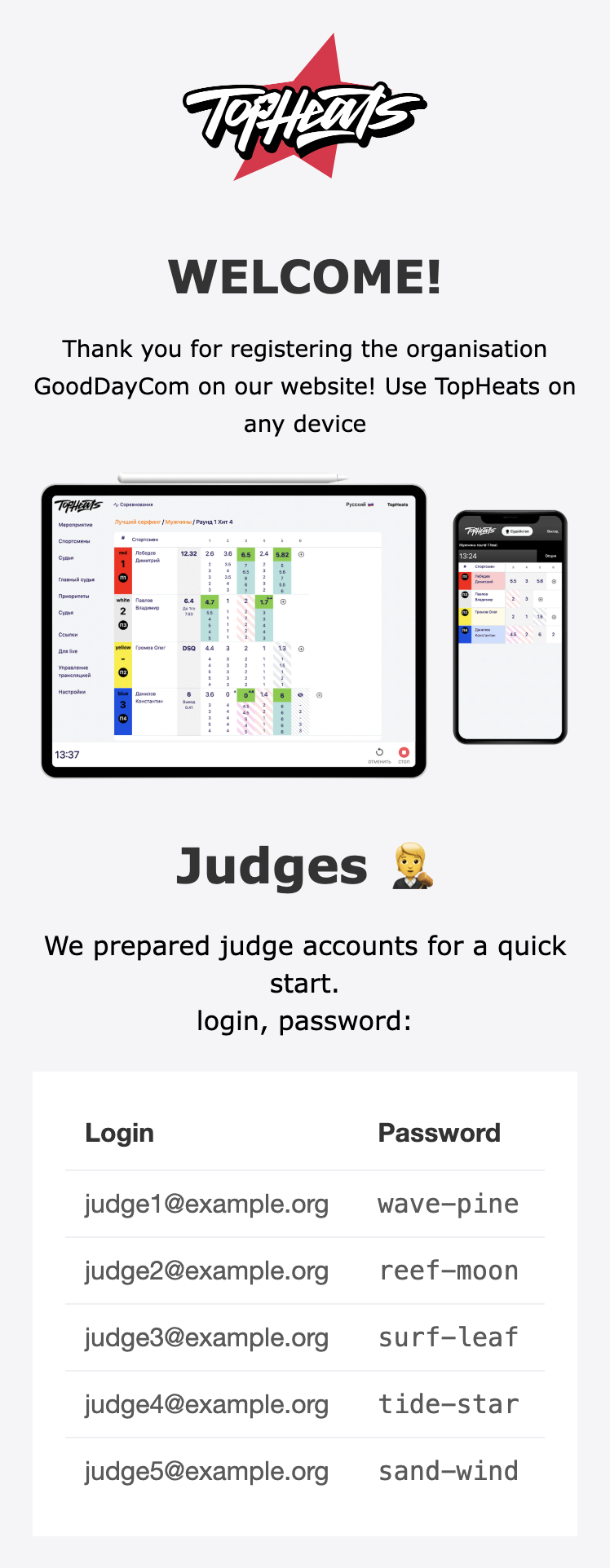
Your organisation’s judging team
Open Dashboard → Judging team. This list contains organisation accounts and invited judges. Search by name or email to find a judge.
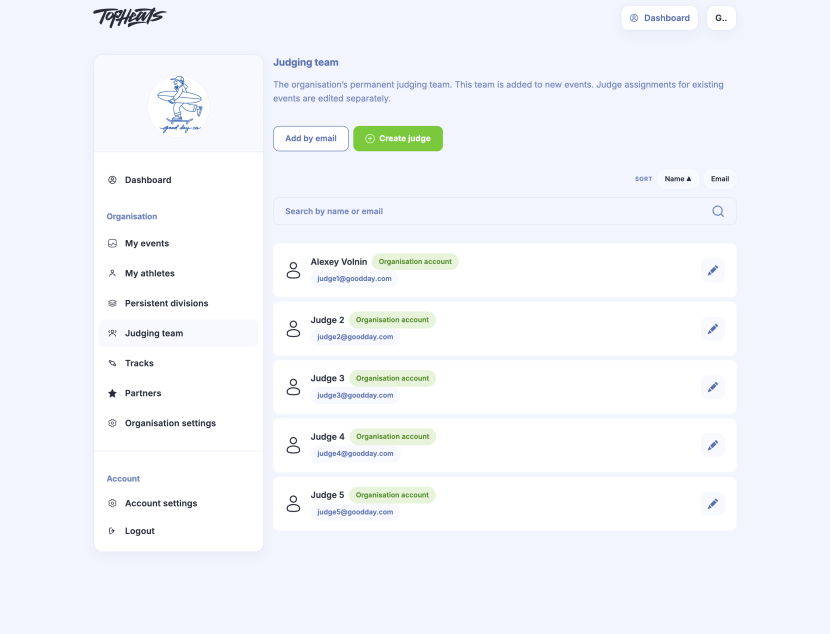
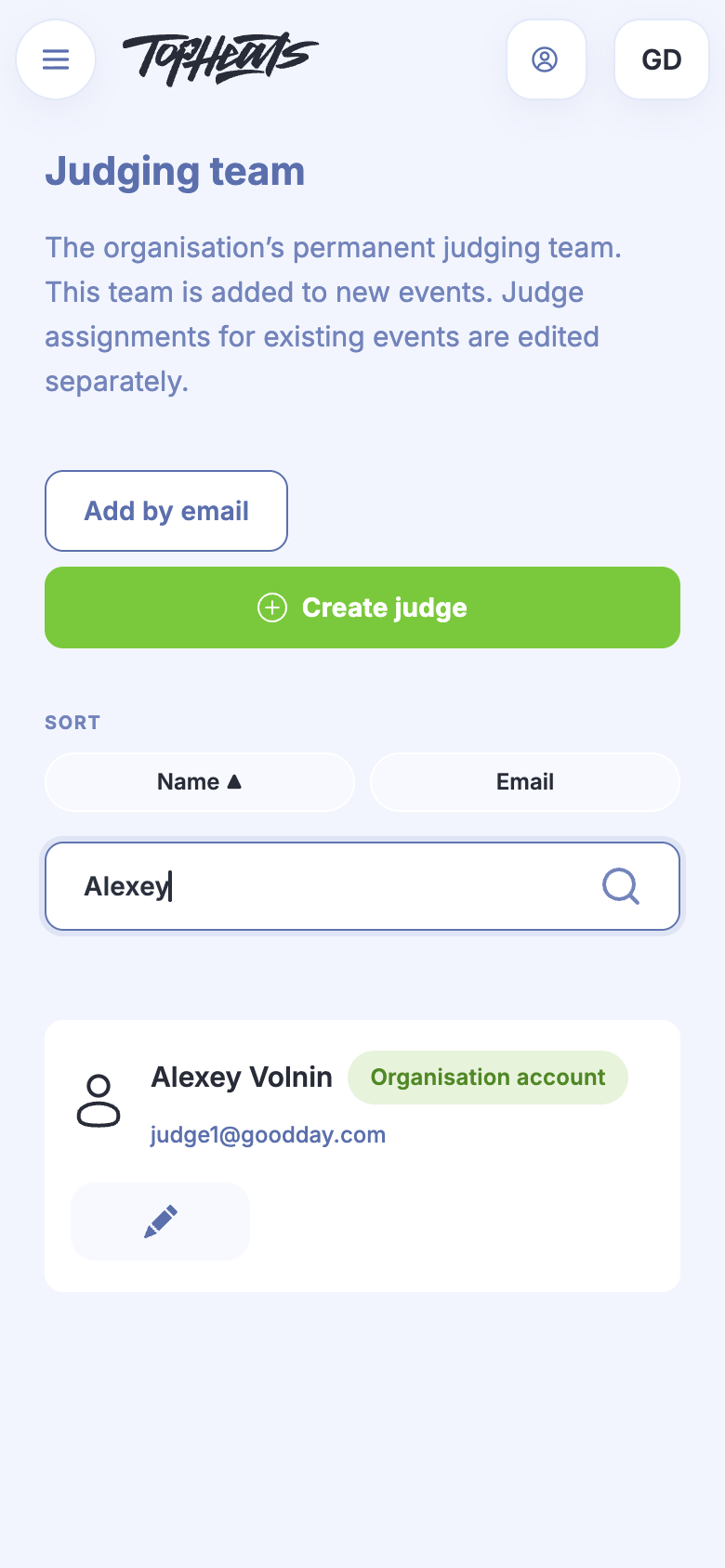
The team is automatically added to new events. Changing the team does not change an existing event’s panel: manage that separately in the event’s Judges section.
Change a name or password
You can edit the name and password of an Organisation account. An External judge manages their own account details; your organisation cannot edit them.
-
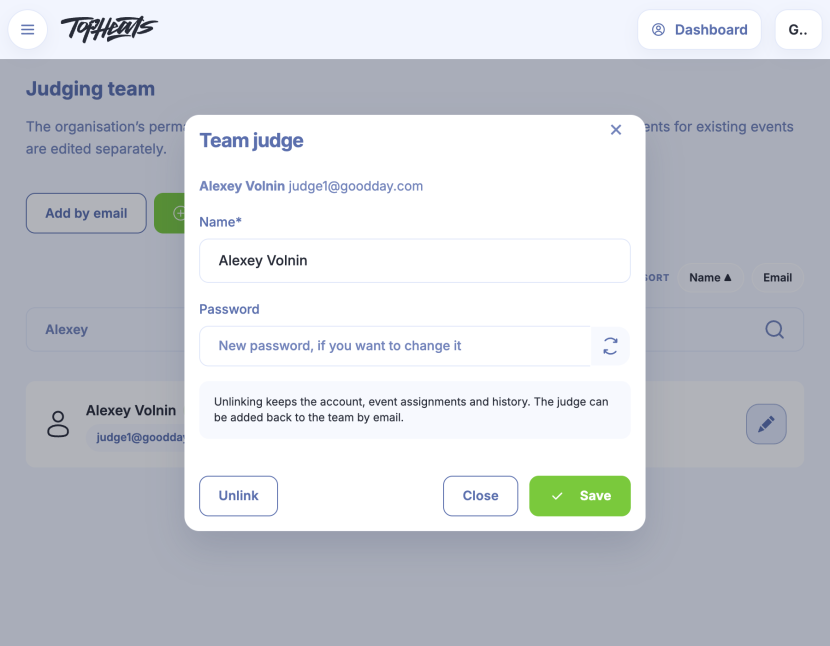
Click the pencil on the judge’s card.
-
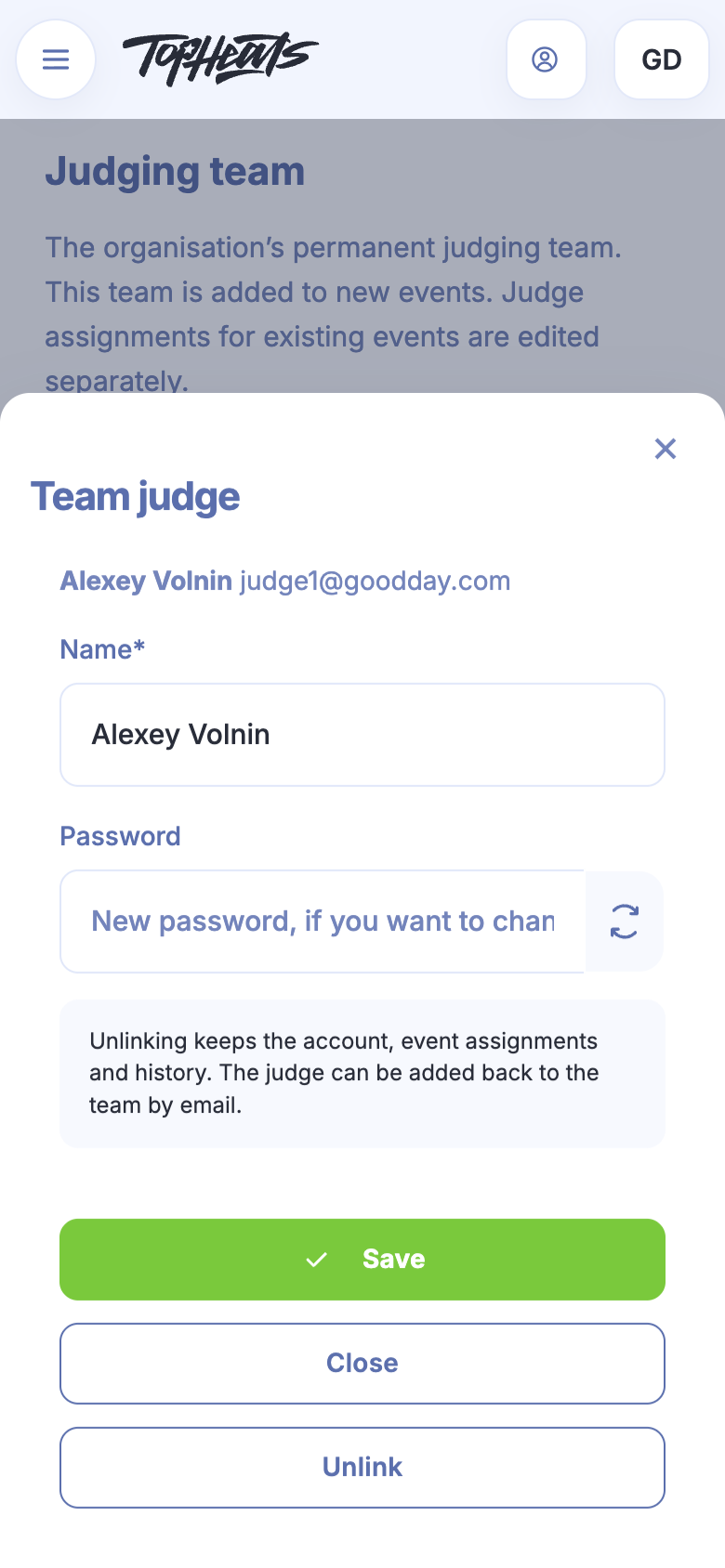
Change Name if needed. For example, replace a numbered judge name with the name of the person who will be scoring.
-
To change the password, enter a new value in Password or use the generation button to its right. Leave the field empty to keep the current password.
-
Click Save. Give the judge the new password if you changed it.
Add to the team
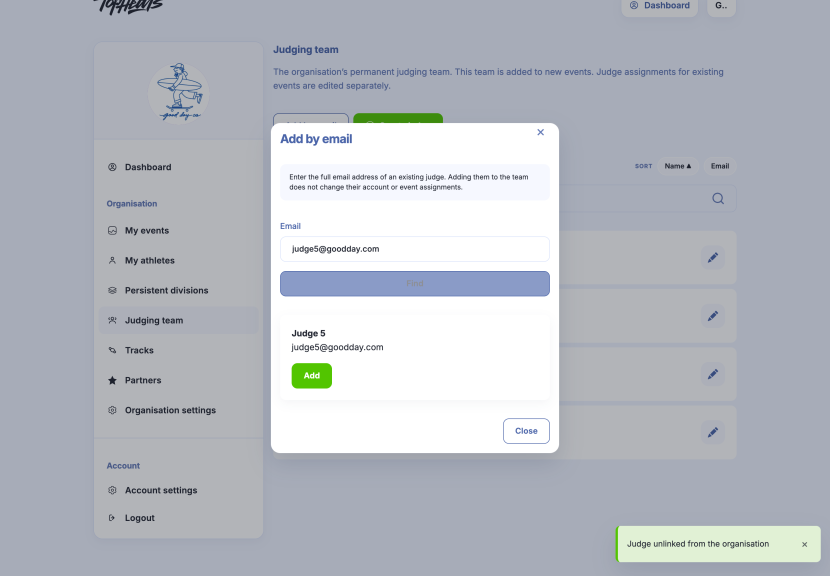
If the person already has a judge account, click Add by email, enter their full email address and click Find. Check the name returned, then click Add. They do not need to register again.


For a new account, use Create judge: enter the name, email and password, then click Create. Use this option when the organisation creates an account for its own judging team.
Unlink a judge
Open the judge’s card, click Unlink and confirm. The judge leaves the permanent team, but their account, existing event assignments and results are preserved.
To bring them back, use Add by email. An account that belonged to your organisation remains an organisation account when re-added.
Unlinking and deleting an account are different actions. Deletion may be available for a judge without related data; use it only when the account itself is no longer needed.