
An event's status determines what athletes and spectators see on its page. You can change it from the event management interface.
Change the status
-
Open the event from
 My events.
-
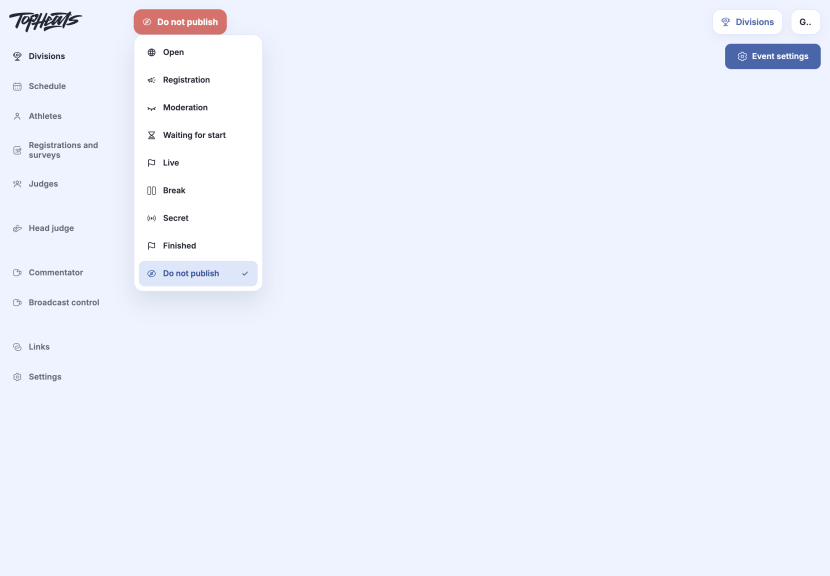
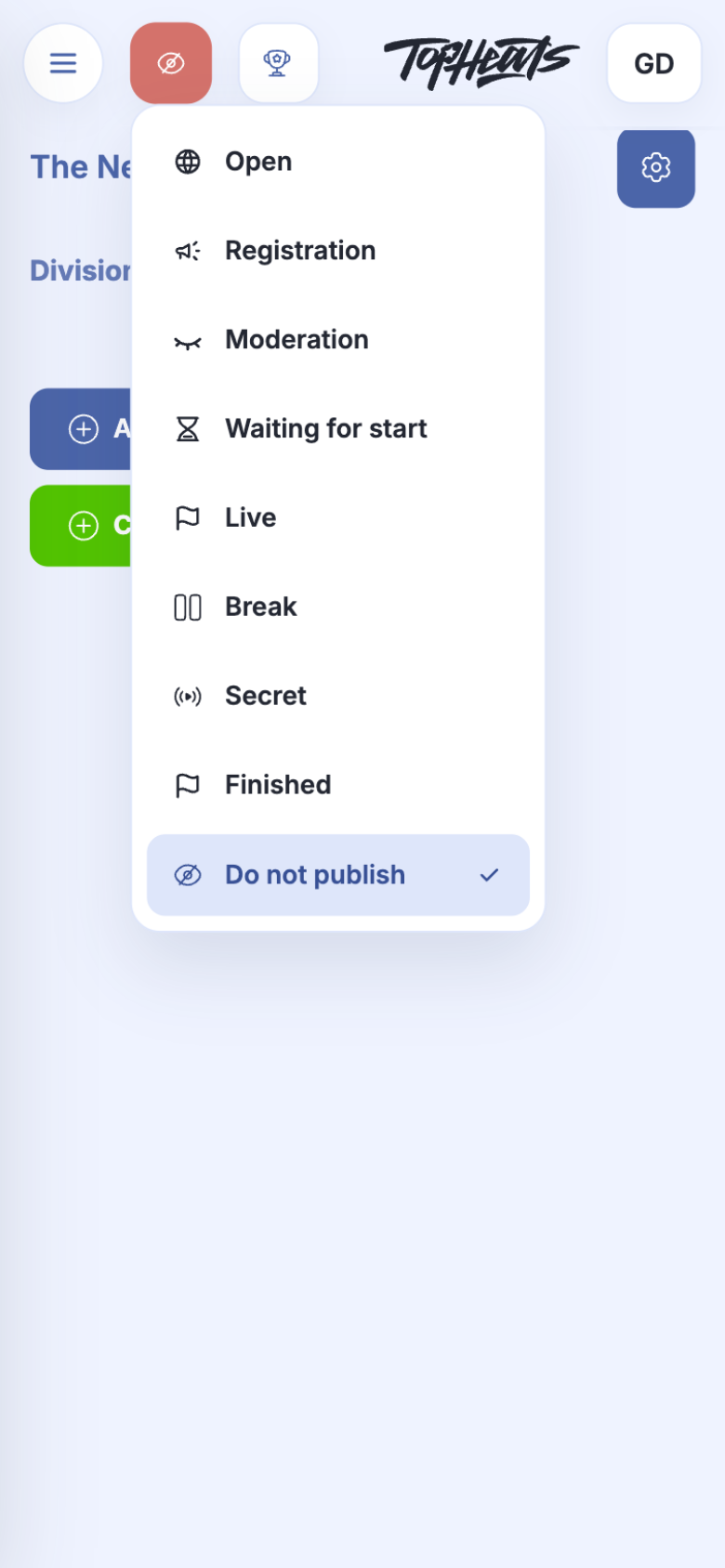
Click the current status at the top of the page. On a phone, it appears as an icon next to the menu.
-
Select a status. It takes effect immediately; this menu does not require a separate save action.
Event managers can also use the same button on the event's public page.
Choose a status
| Status | When to use it and what spectators see |
|---|---|
 Do not publish |
Prepare the event. This is the default for a new event: it is absent from general listings and the calendar, and its regular public page is unavailable to spectators. |
 Open |
Announce the event. Athletes and spectators can start following it while you prepare. |
 Registration |
Accept entries. With an active registration form, the public page shows a registration section with a button leading to the entry form. |
 Moderation |
Prepare the seeding. Divisions are visible, but the athlete bracket is hidden from spectators. |
 Waiting for start |
The event is ready but has not started. Use this for a delayed start too, for example due to weather. |
 Live |
The competition is underway. Its progress appears on the event page. |
 Break |
The competition is paused, for example until the next day. The schedule helps spectators see when it will resume. |
 Secret |
A mode similar to Live, accessible by link. The event is not shown on the organiser's page or the TopHeats homepage. |
 Finished |
The competition has ended and spectators can view the results. |
Starting a heat or battle automatically changes the status to Live only from Waiting for start or Break. Other statuses do not switch automatically. You can also select Live manually.
Secret does not restrict access to invited people: anyone with the link can open the event. Do not publish preserves working access for event managers, administrators and assigned judges; special access or preview links may also work.