
Use a registration form to collect competition applications and athlete details. Create divisions first if athletes will choose them when applying.
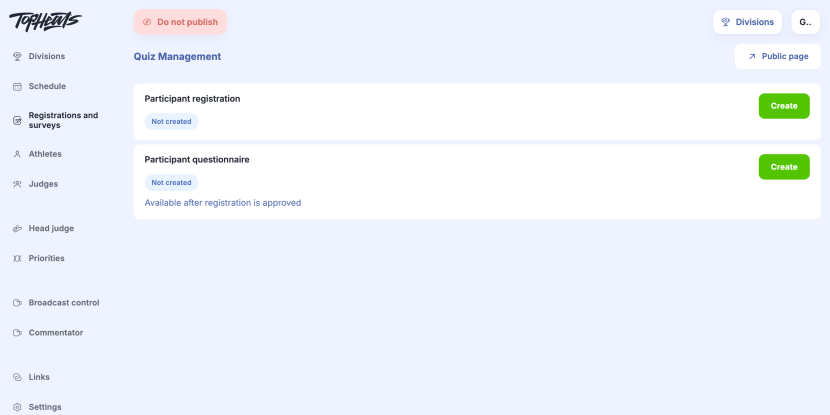
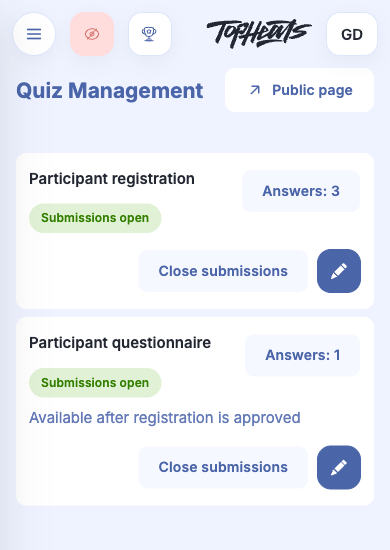
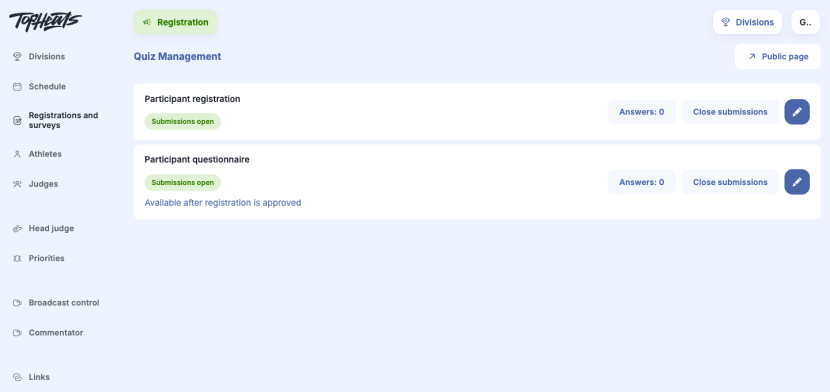
Open the event and Registrations and surveys. In Participant registration, click Create, or Configure for an existing form.
01. General
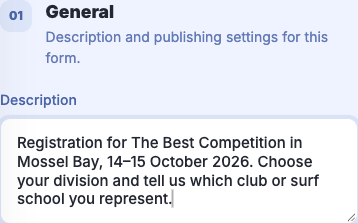
Add a Description if participants need instructions.

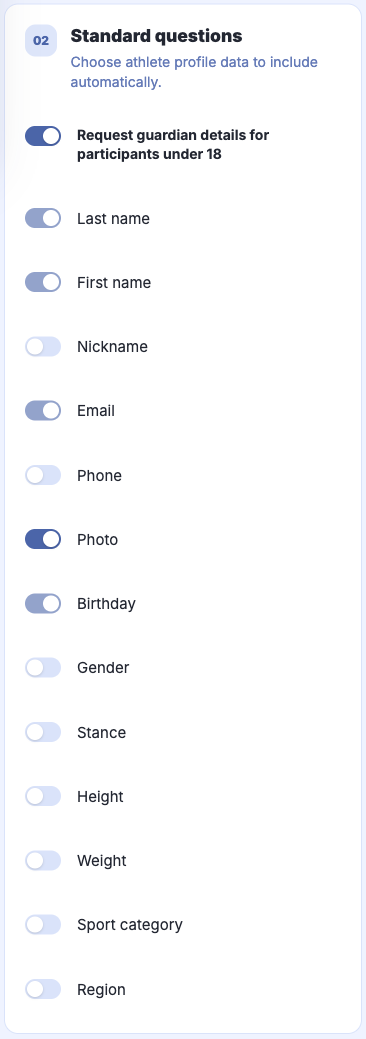
02. Standard questions
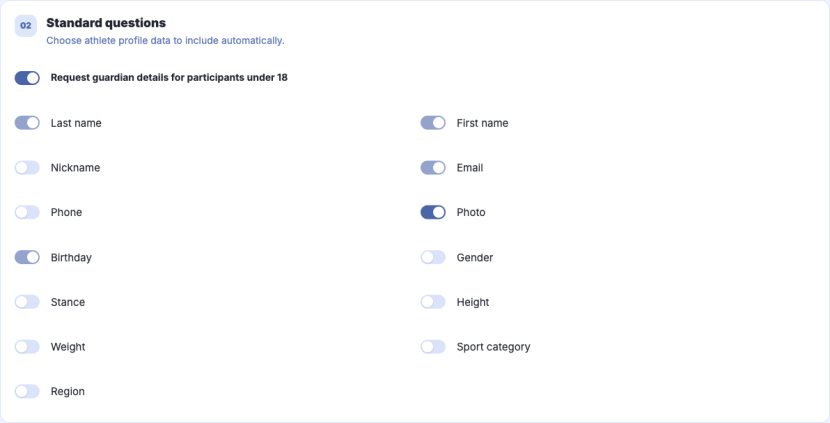
Choose which details to request, such as Birthday and Photo.
For children's applications, enable Request guardian details for participants under 18. The form will ask for the athlete's birthday and the parent's contact details. Age is calculated at the competition start date.
03. Additional questions
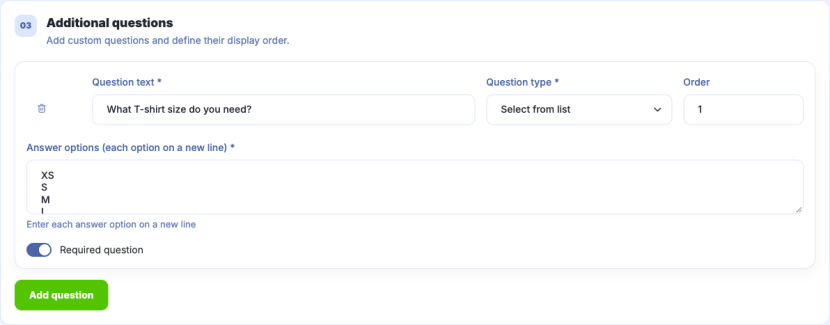
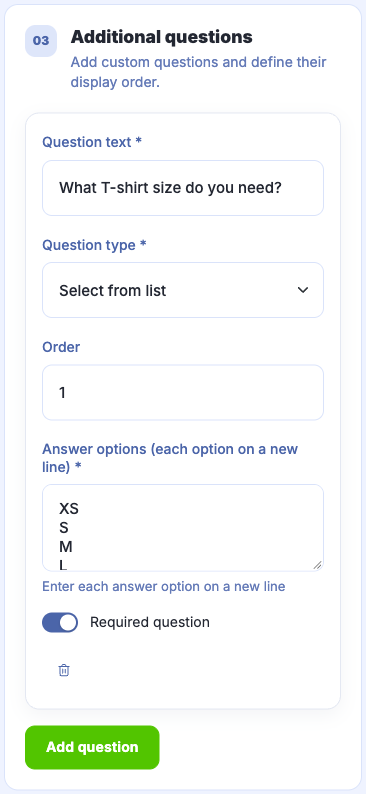
Click Add question. Write your question and choose an answer type. Enable Required question if an answer is required.
For example, use Select from list for T-shirt sizes. Enter each answer option on a new line. The same applies to Multiple choice options.
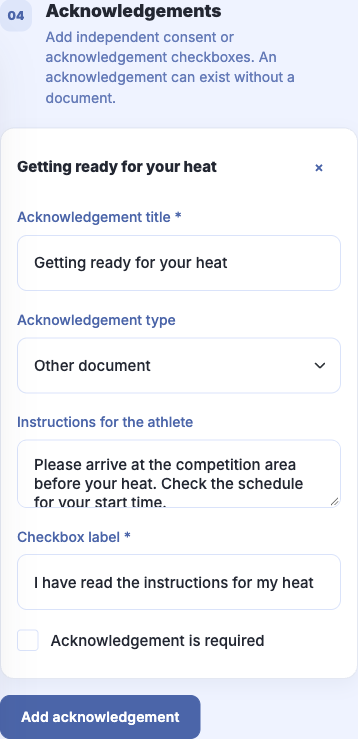
04. Acknowledgements
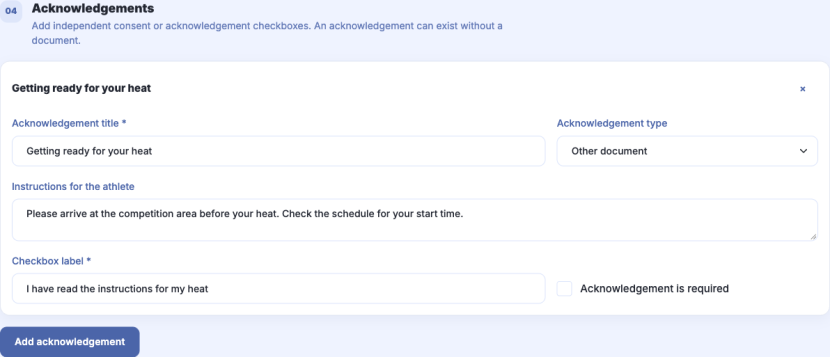
Add a checkbox if an athlete needs to confirm consent or that they have read the rules. Write what they are confirming. A required checkbox must be ticked before submitting an application.
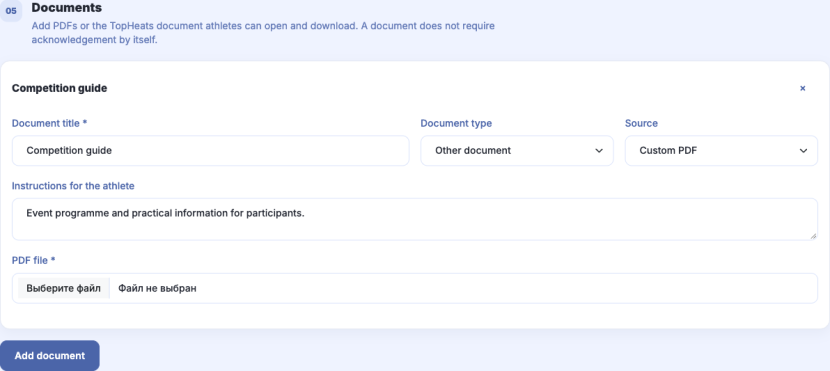
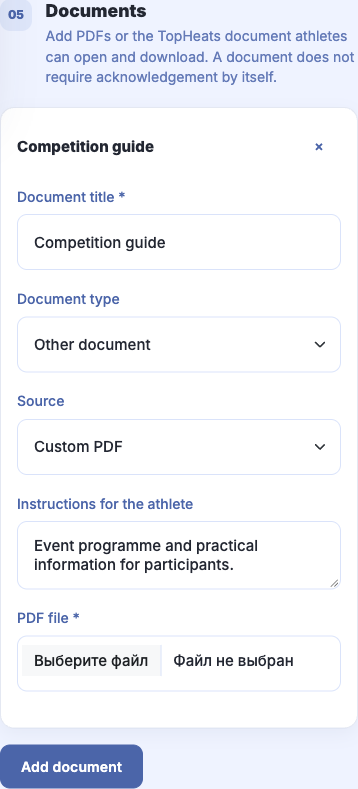
05. Documents
Attach the competition rules or other material athletes need to read. To ask them to confirm that they have read it, add an acknowledgement in the previous section.
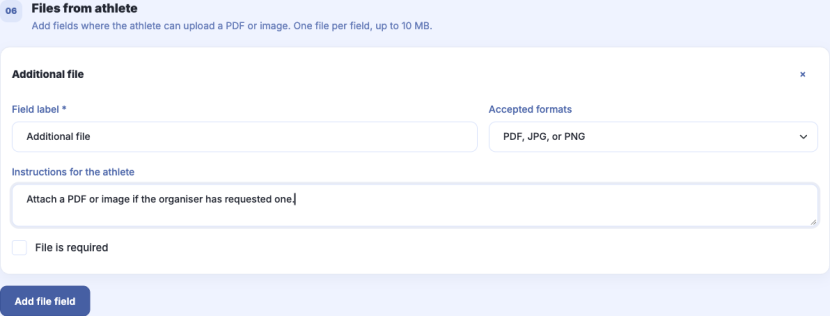
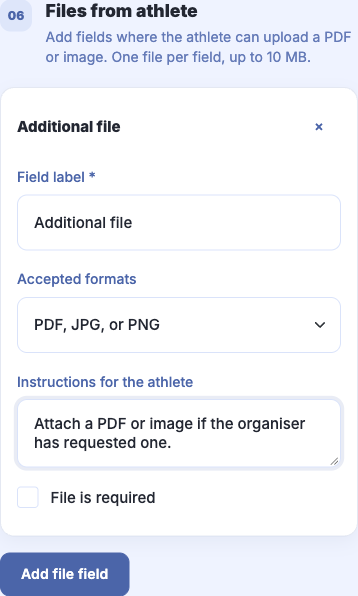
06. Files from athlete
Add a file field to receive a document or image from the athlete. Each field accepts one PDF or image up to 10 MB.
Receiving applications
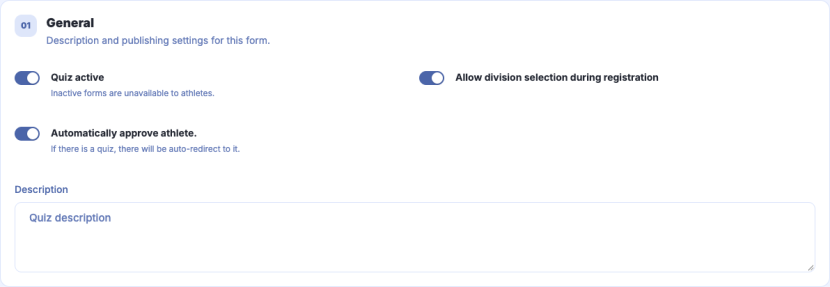
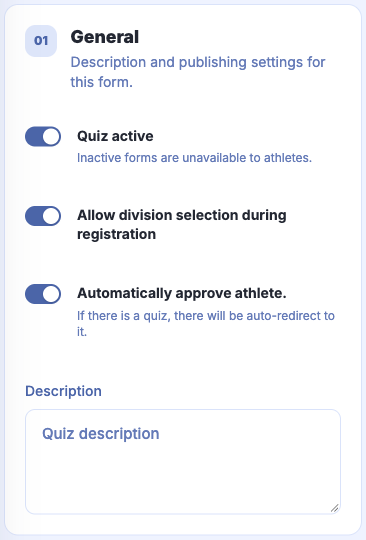
After saving the form for the first time, open Configure. Under General, you can set:
- Allow division selection during registration — athletes choose their own division.
- Automatically approve athlete — applications are approved immediately. Turn it off to review applications yourself.
Opening registration
Enable Quiz active and save the form. Then choose Registration as the event status at the top of the page.
Reviewing applications
Click Answers: N in Participant registration. To accept an application, change its status from Registration to Approved.
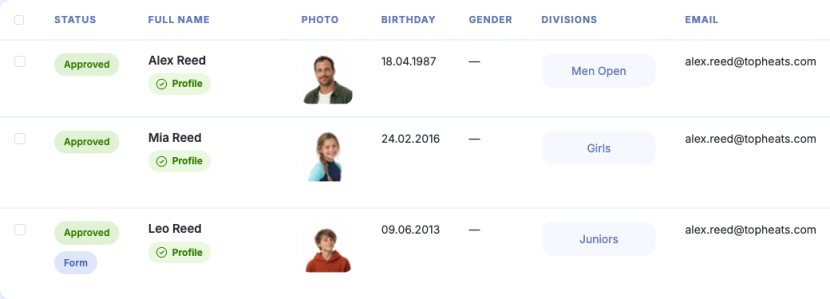
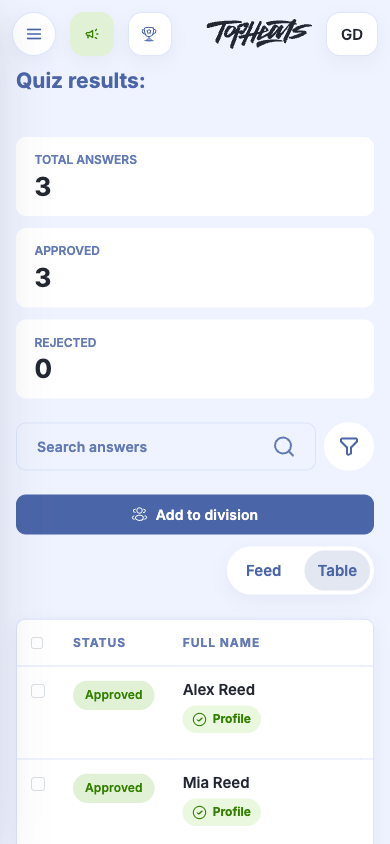
Approved athletes are added to their chosen division. View the field under Athletes.
Entries under Registration are not yet included in heats. Click Confirm to add an athlete to the field. Cancel registration undoes that confirmation.
If an athlete edits an application, it needs approval again. With automatic approval enabled, this happens automatically.
A separate participant questionnaire
To collect information for the host and commentators, set up a participant questionnaire.