
The scoring interface adapts to phones, tablets and computers, so you can work comfortably with scores on any of these devices.
Choose an event
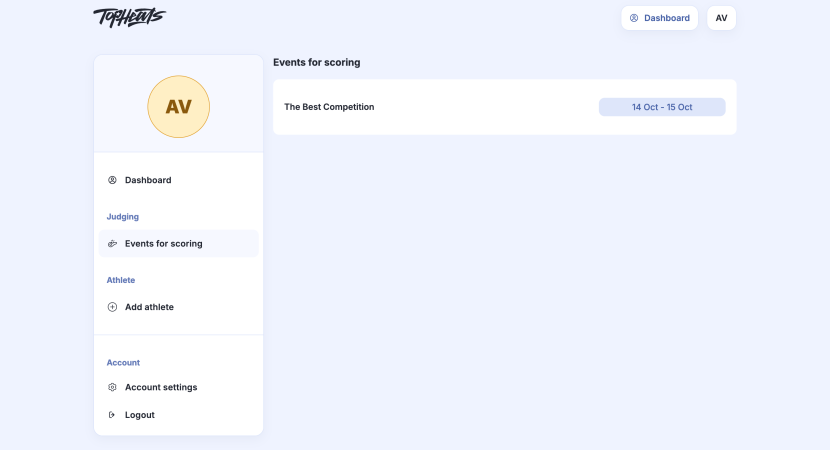
Sign in to TopHeats with your judge account and open Dashboard. Select the event you will be judging. The full list is available under Events for scoring.

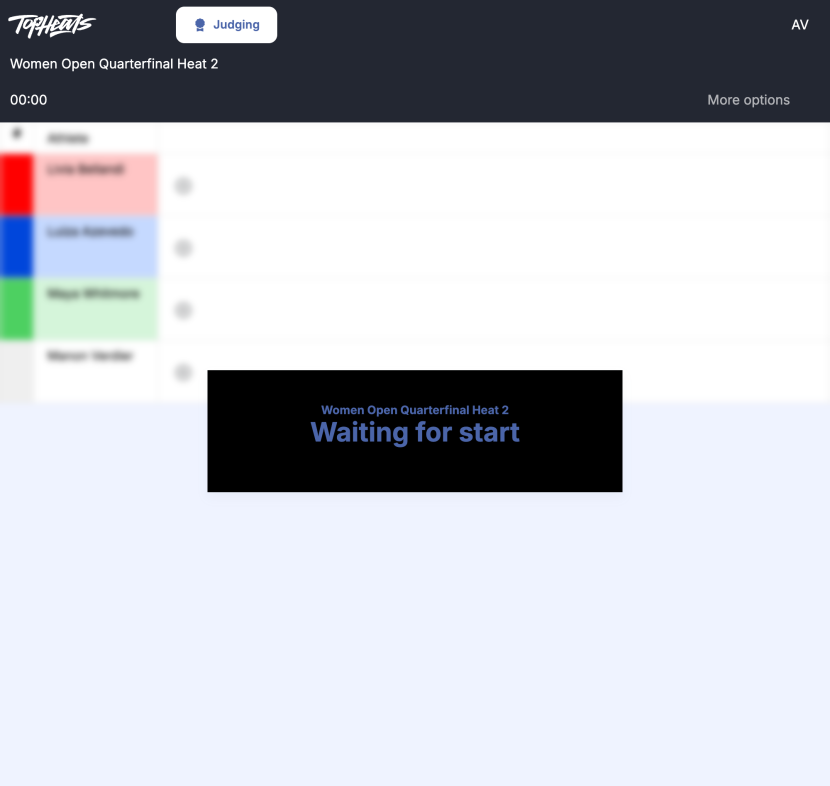
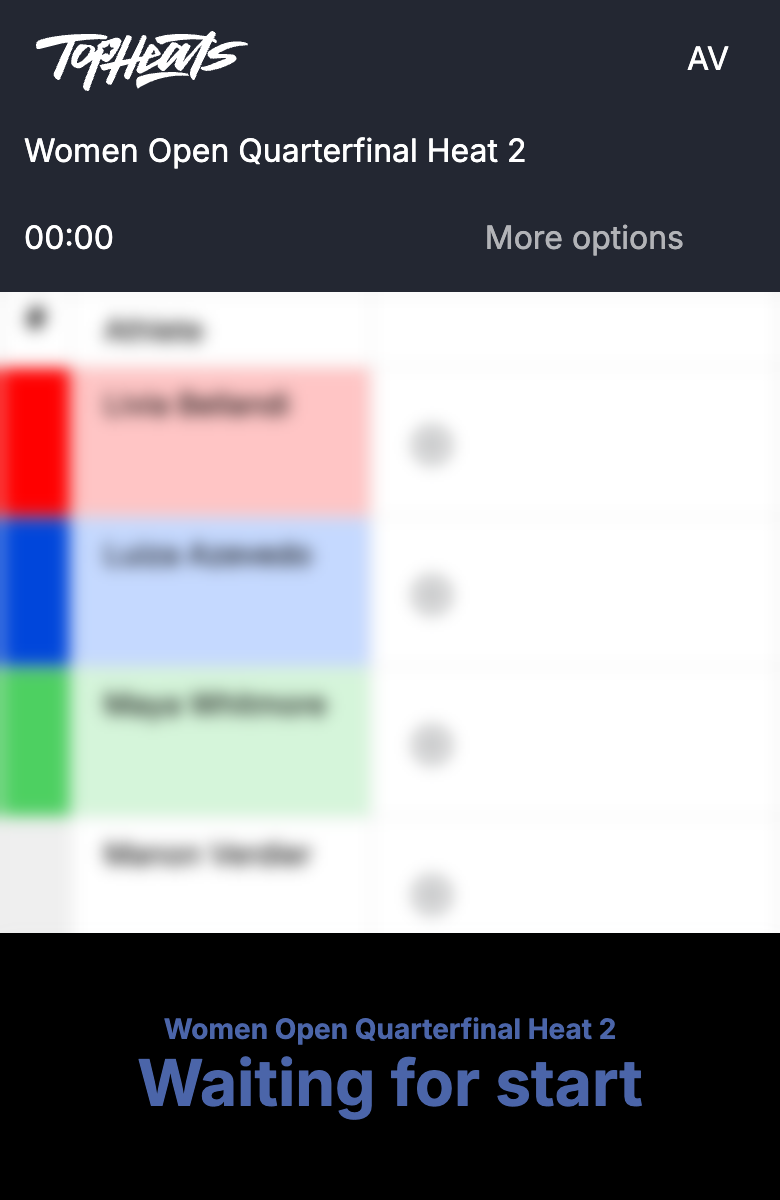
Before a heat starts, you see its athletes and Waiting for start. This is the normal waiting screen: wait for the head judge to start the heat. Score entry is unavailable until then.
Enter or change a score
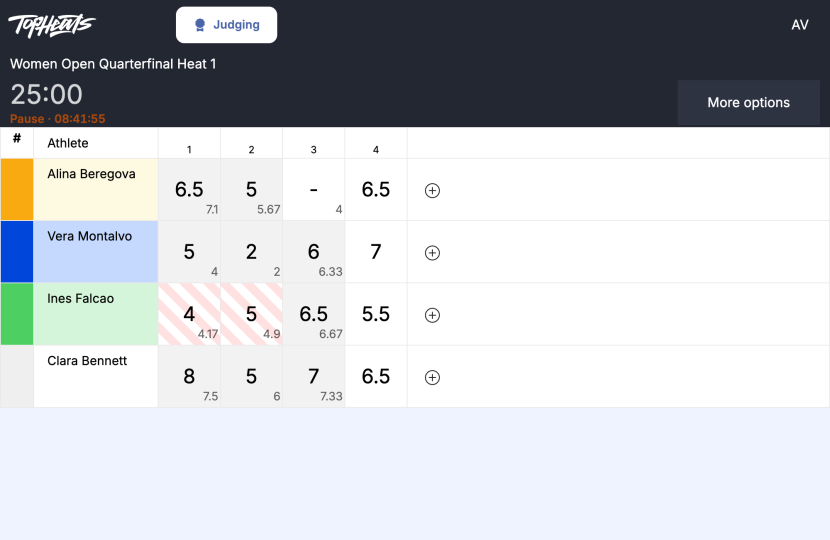
The scoring table becomes available after the start. The timer shows the remaining time; pauses are also visible to judges.
This example has five judges and four athletes with four attempts each. The first three are approved by the head judge; the fourth is still editable. Each scoring judge enters their own scores, while the head judge sees the whole team’s work.
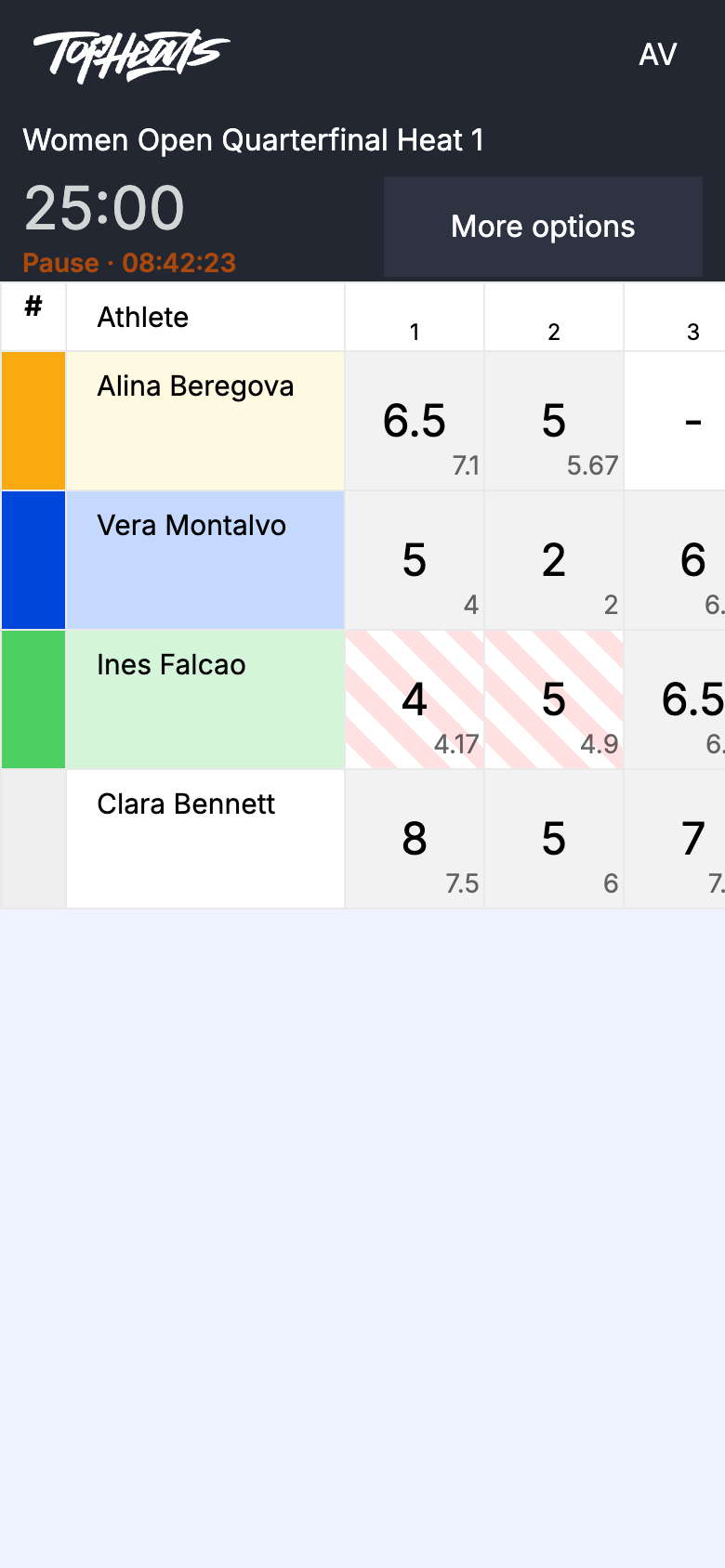
On a phone, scroll the table horizontally to see later attempts.
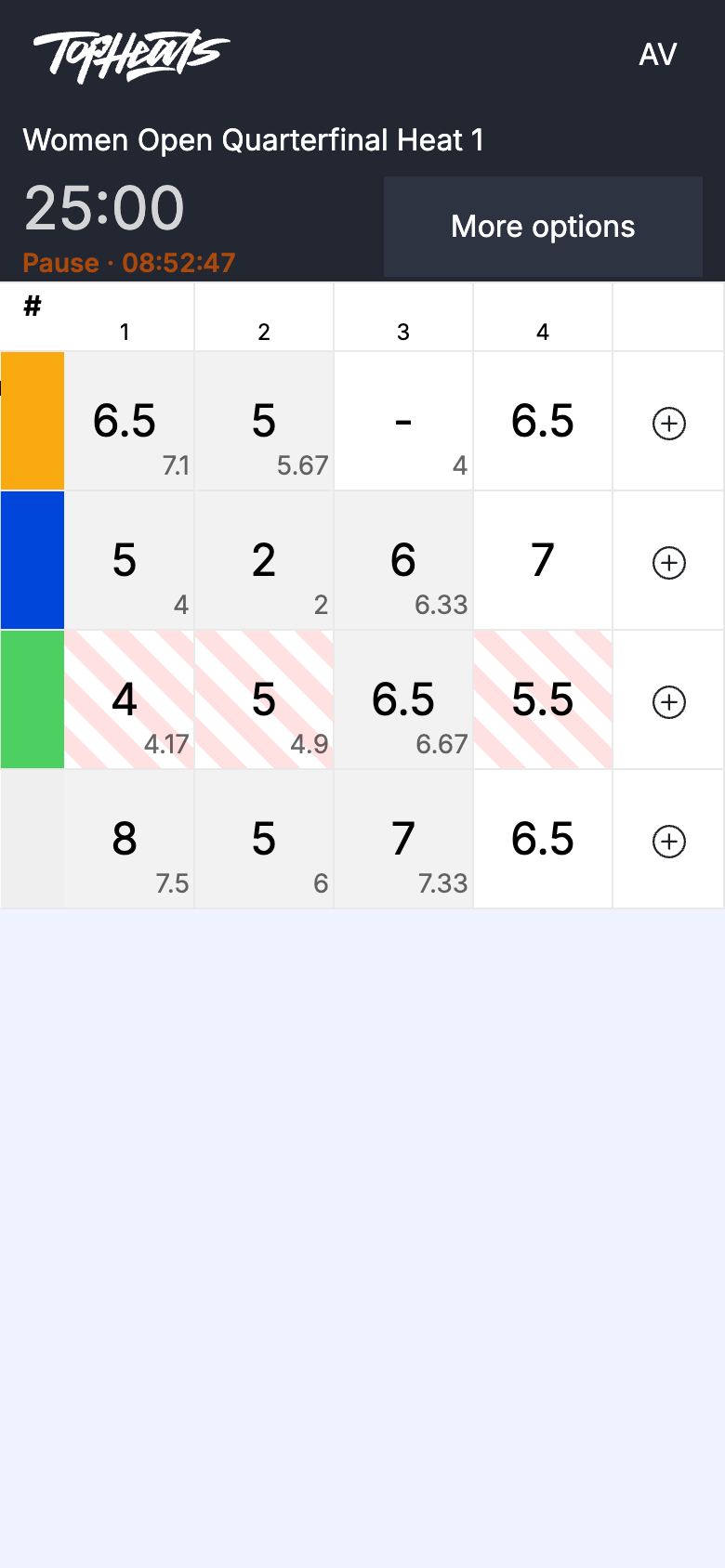
Find the athlete’s row by name and jersey colour. For a new attempt, click + in their row. If the attempt already exists, click its cell. Enter the score and press Enter. For example, 65 becomes 6.5. The score is sent to the head judge.
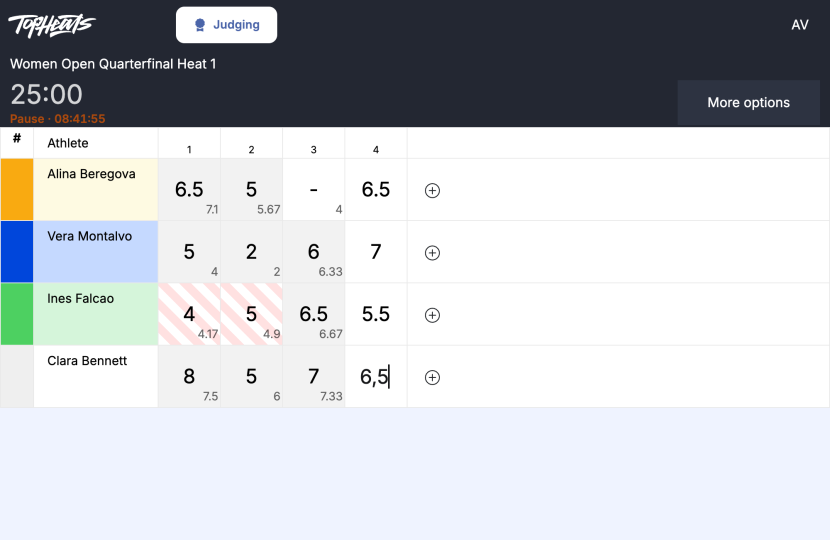
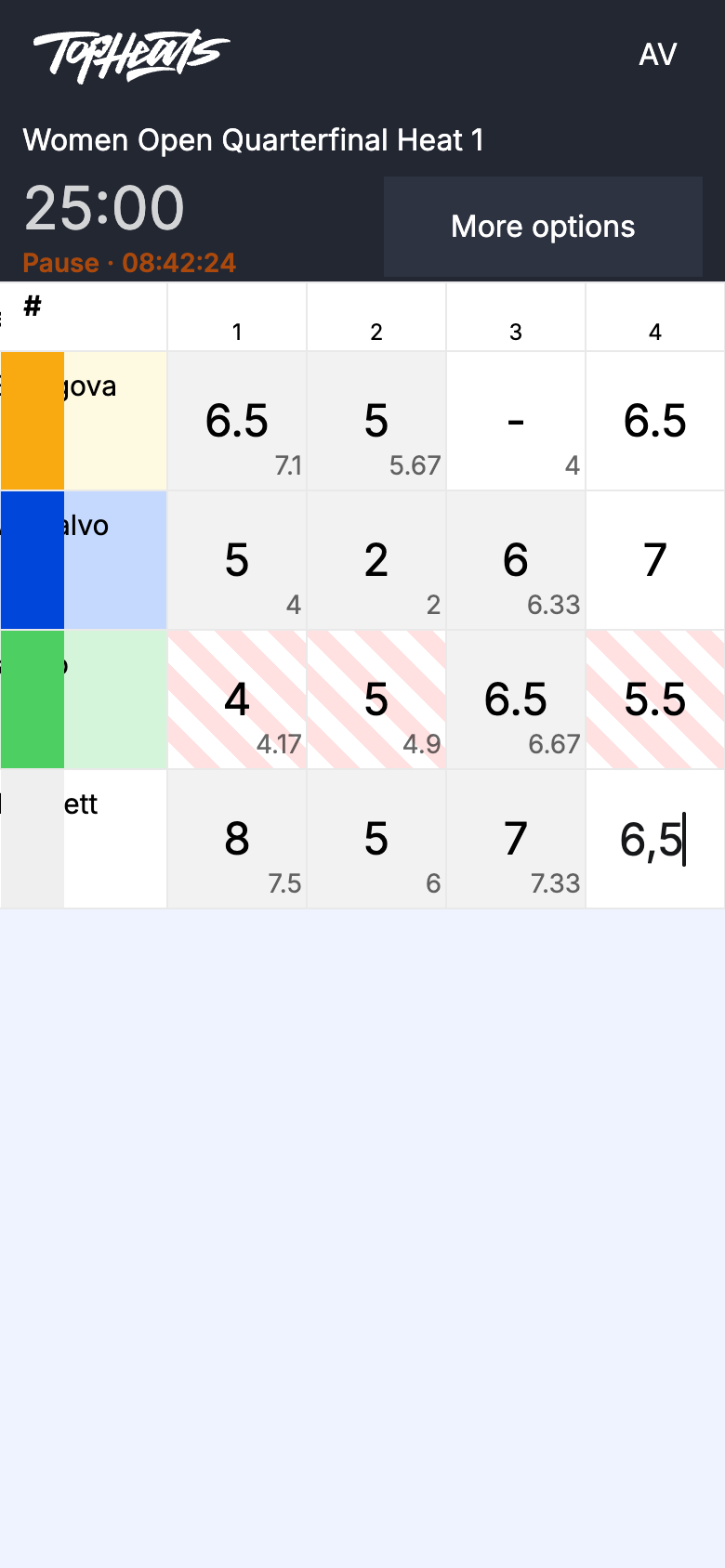
Until the attempt is approved, you can change the value in the same cell.
Read the scoring table
- A dash means other judges have scored the attempt but you have not entered your own score. Alina’s third attempt is an example.
- The small number beside your score is the final average after approval. For example, your score for Alina is 6.5, and the average is 7.1.
- A grey cell means the attempt is approved. You cannot change a score you have already entered: contact the head judge.
- The striped background on Ines’s score indicates a penalty mark. See Voting for a penalty.
With manual approval, scores appear in the live results after the head judge approves them.
If your score was missing at approval, you can still enter it later. This removes approval, so the head judge needs to check the attempt again.
Delete an incorrect score
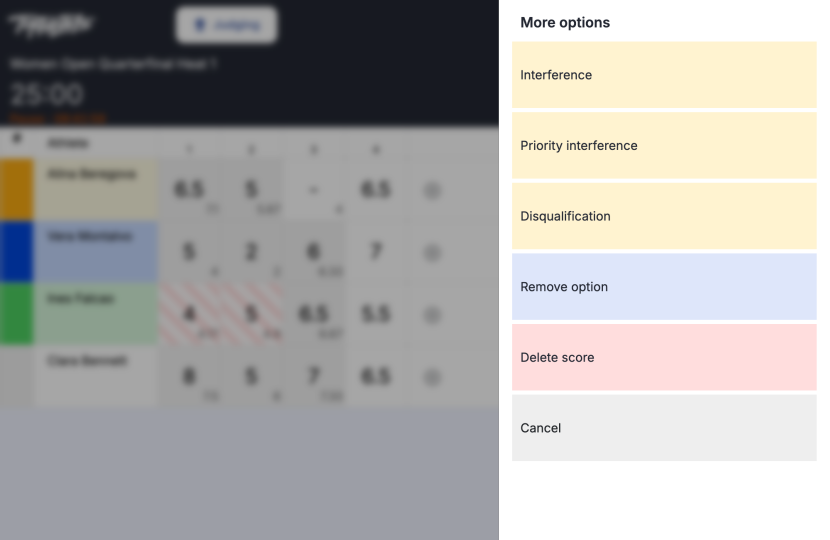
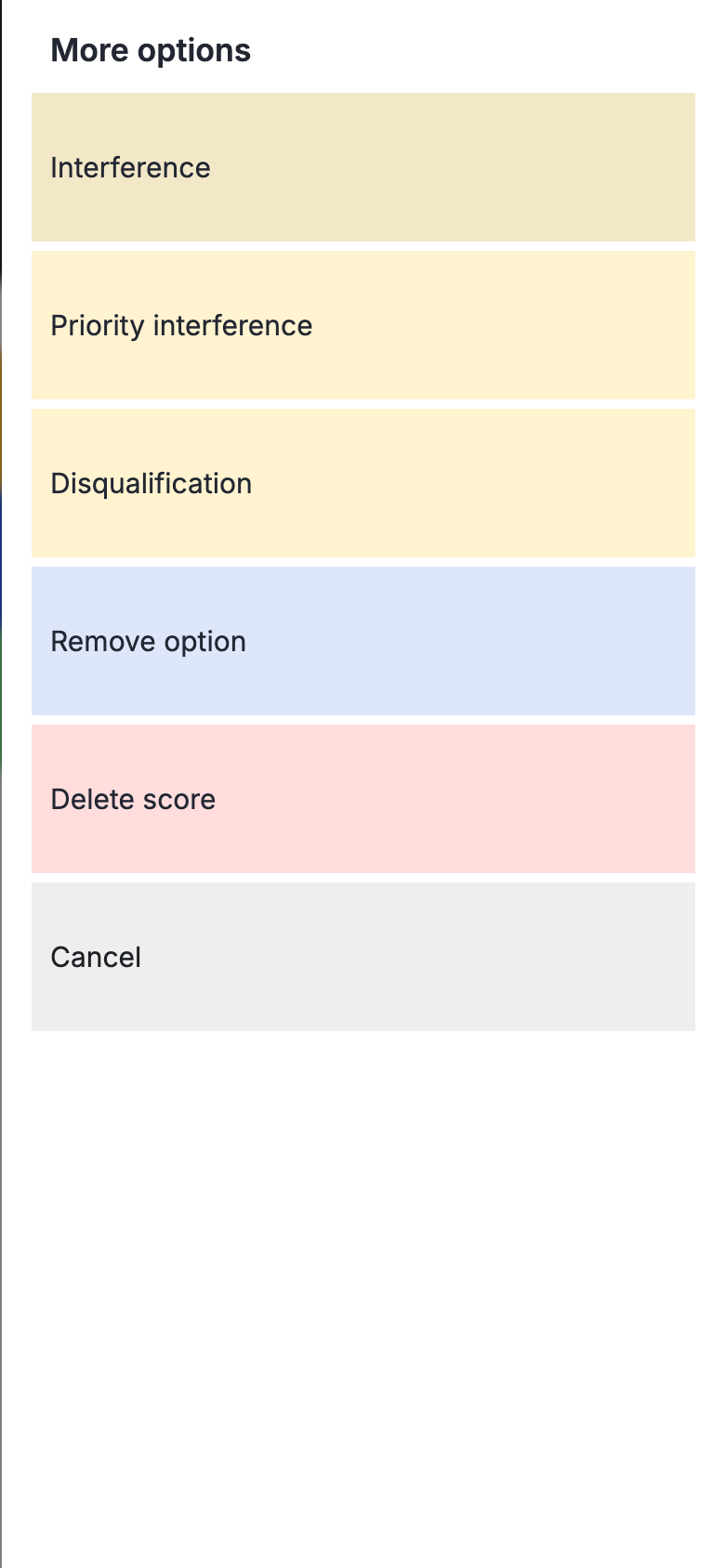
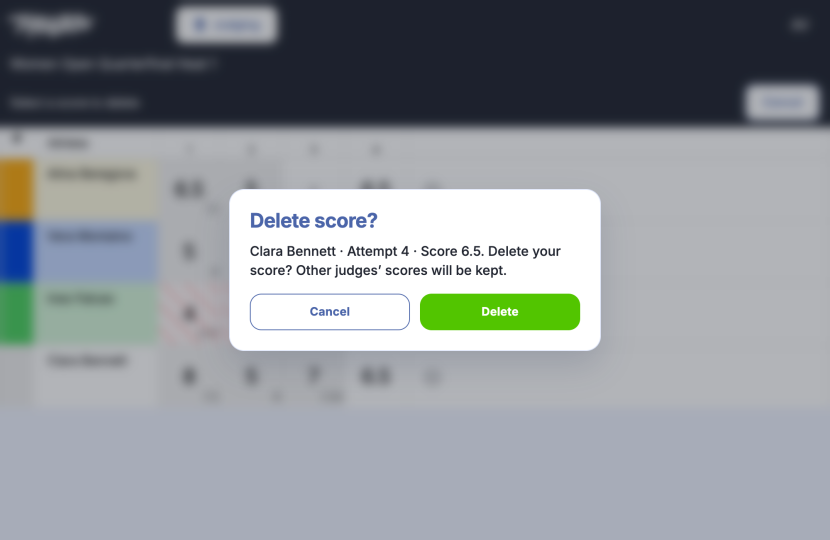
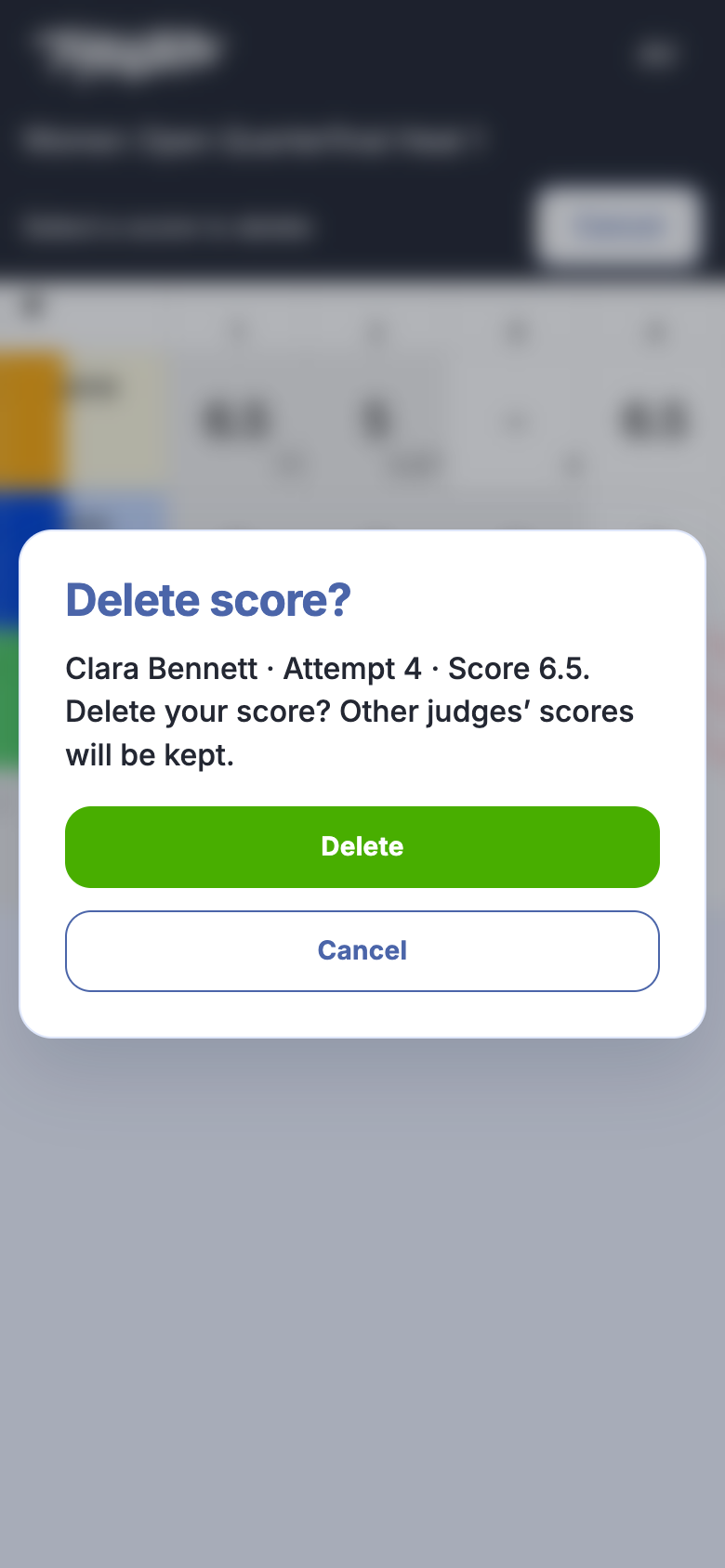
Use “More options → Delete score” to delete a score. Only your score is removed; other judges’ scores are kept.
-
Click More options above the table, then Delete score.
-
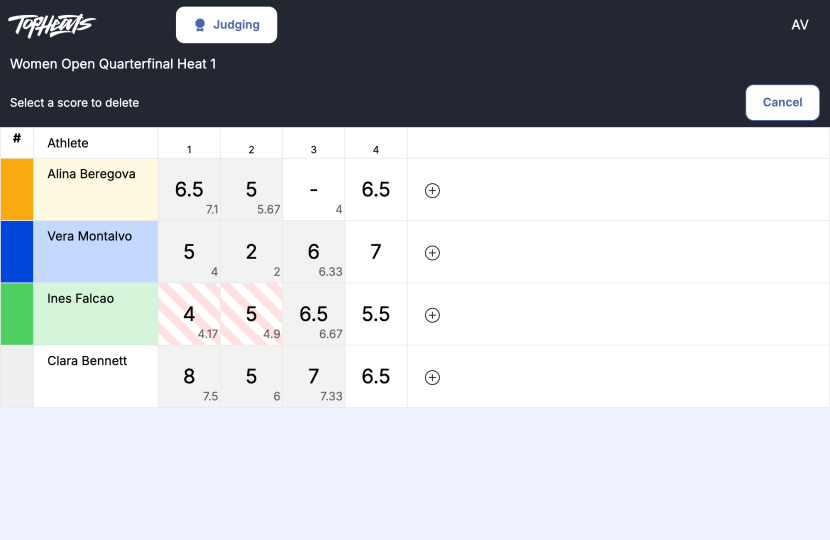
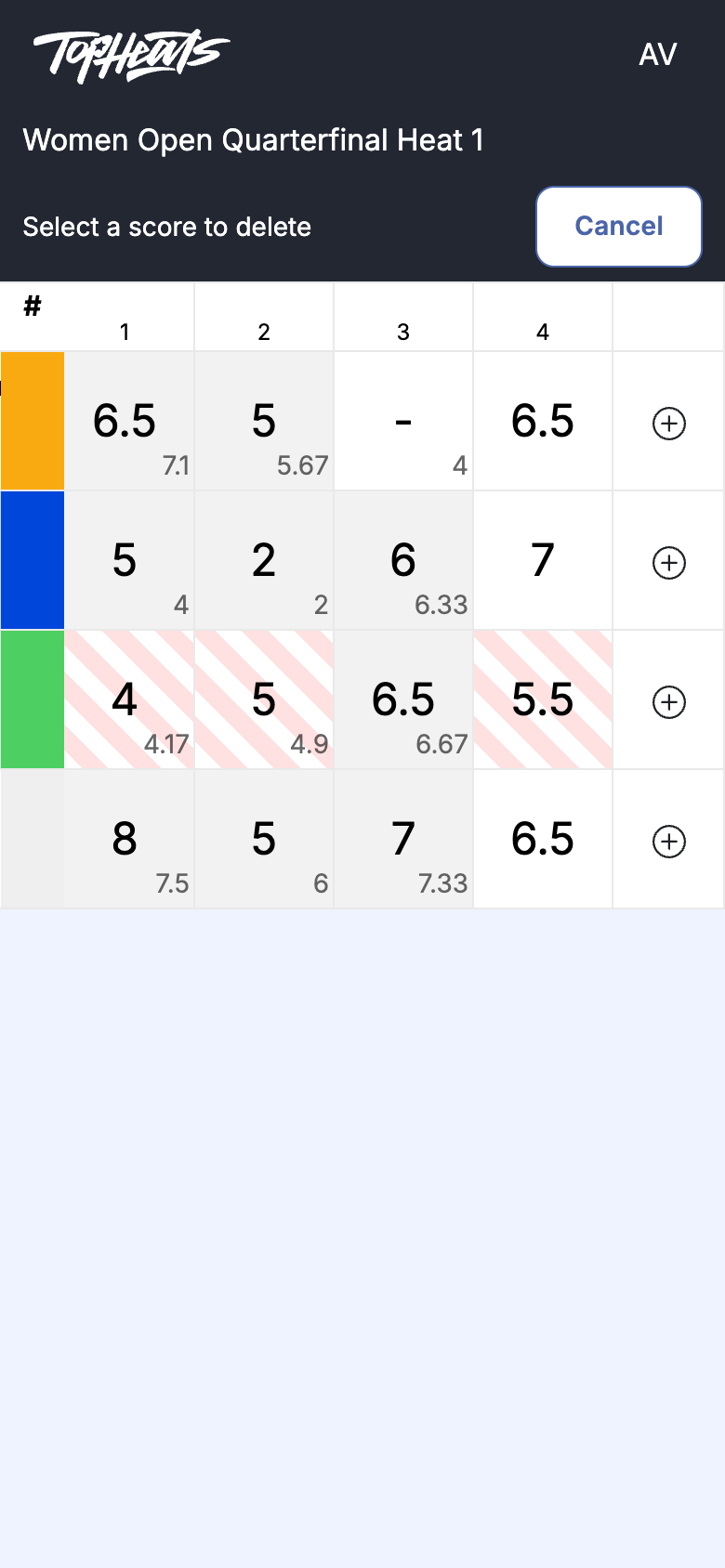
Click the relevant score cell. The banner asks you to select a score for deletion.
-
Check the athlete, attempt number and value in the confirmation. Click Delete, or Cancel to keep the score.
The head judge handles corrections to approved scores. Withdrawing a penalty vote with Remove option does not delete the score.
Move to the next heat
When the head judge finishes the current heat, your screen shows the next heat’s athletes and Waiting for start. The screenshot shows Heat 2. You cannot enter scores until it starts.